

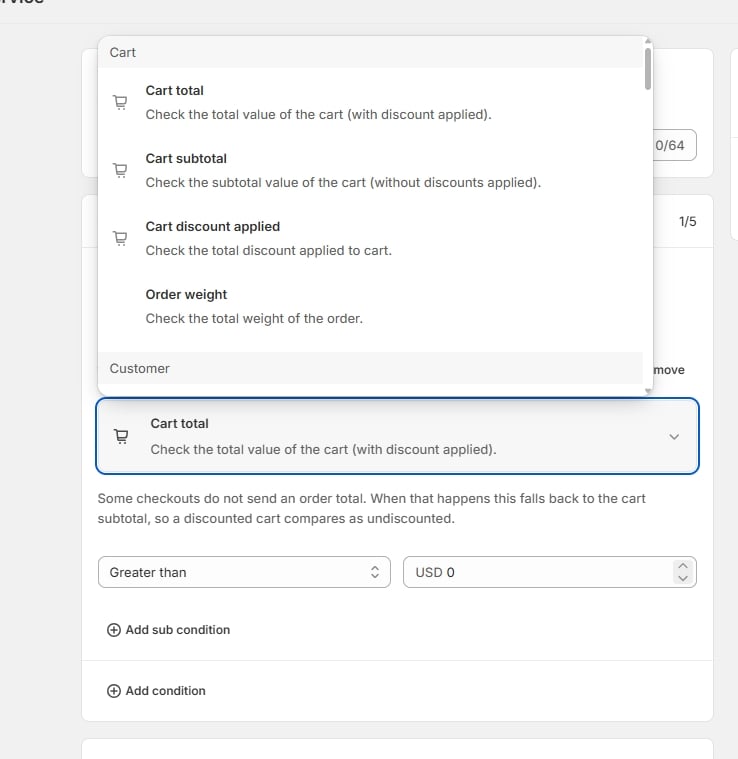
The condition picker, grouped by section
How conditions fit together
- A rule holds up to 5 conditions.
- Each condition holds up to 5 sub-conditions — several tests against the same field, so “cart total is between 50 and 200” is one condition with two sub-conditions.
- Match type decides how the conditions combine:
- AND — “Every condition below has to be true for the rate to apply.”
- OR — “The rate applies as soon as one condition is true, even if the others are false.”
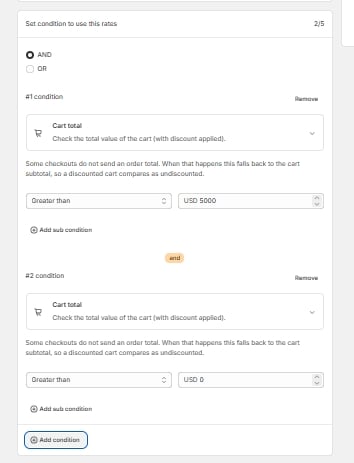
Two conditions combined with AND — the badge between them shows how they join
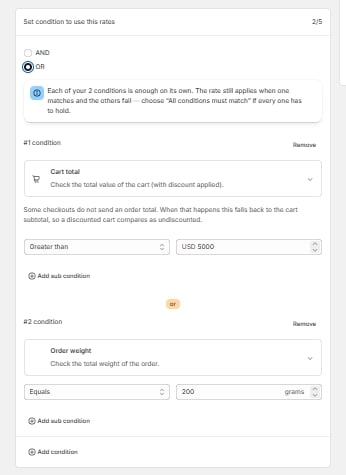
The warning the editor shows when OR is selected with more than one condition
Cart
Customer
Customer conditions need Protected Customer Data access approved for the app in your Partner Dashboard. Without it the app can’t read these fields at checkout.
Destination
Read from the buyer’s shipping address.Origin
Read from the fulfillment location the order ships from.Shopify locations carry fewer fields than a buyer’s address, so origin name, origin company name, origin address line 3, origin fax and origin address type aren’t offered — there’s nowhere in Shopify to set them, and a rule using one could never match. The destination equivalents are available, because a buyer’s address genuinely carries a name and a company.
Item
Checked against each line in the cart.Rate
Operators
Which operators appear depends on the field you picked. Numeric fields — cart total, cart subtotal, cart discount applied, order weight, item quantity, item weight, item price: Equals · Not equals · Greater than · Greater or equal · Less than · Less or equal Exact-match lists — country, customer tag, product ID, variant ID, currency, locale: Any · Not any Text fields — customer email, customer names, province, city, address lines, phone, destination name: Partially contains · Partially does not contain · Any · Not any Postal code, fax, address type, destination company name: Partially contains · Partially does not contain · Any · Not any · Starts with · Not starts with · Ends with · Not ends with Item name, item SKU, item vendor, fulfillment service: Partially contains · Partially does not contain · Any · Not any · Is Null · Is Not Null Items attribute: Partially contains · Partially does not contain · Any · Not any · True · False Requires shipping, Taxable: True · FalseAny / Not any take a list — enter several values separated by commas. On numeric fields, type digits only; a value like a postal code belongs in a text field, where leading zeros and a
+ prefix are preserved.