

What each plan unlocks
Each plan includes everything below it, so Ultimate covers every rule type. Paid plans come with a 3-day free trial.
Before you’ve chosen a plan
Until a plan is selected for your store, opening the app takes you straight to Shopify’s plan-selection page. Pick a plan — the Free tier is enough to start building Simple rules — and the app opens normally.Badges and padlocks
In the Create Shipping Customizations modal, every rule type carries a badge naming the plan it needs.- A type your plan covers shows its badge in green with an arrow — select it to open the editor.
- A type your plan doesn’t cover shows an amber badge and a padlock. Selecting it takes you to plan selection instead of an editor.
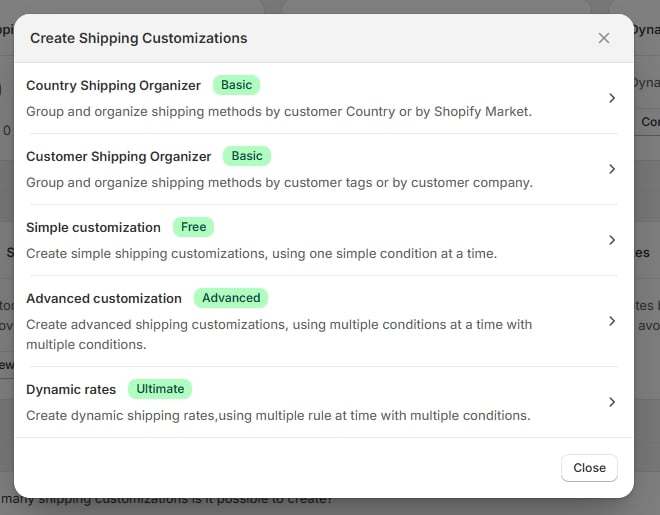
On Ultimate — every type unlocked, each badged with the plan it needs
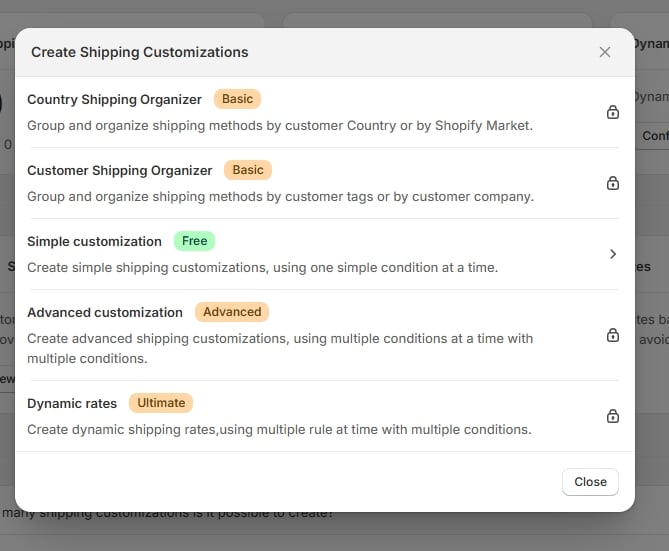
On Free — only Simple customization is available; the rest are locked
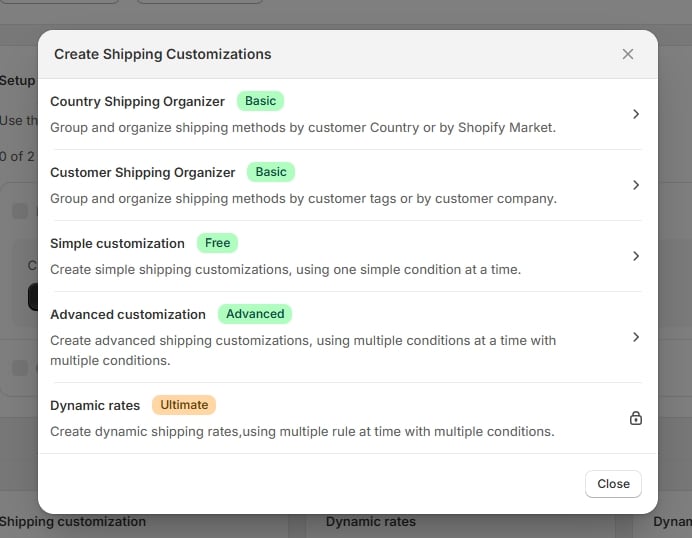
On Advanced — only Dynamic rates is still locked
The upgrade screen
If you reach an editor your plan doesn’t cover — from a bookmark, say, or a link — the app shows an upgrade screen in place of the editor. It names the plan you need, explains what the feature does, and offers View plans and Back to customizations. Your existing rules are never touched by this screen; it only stops new edits.After a plan change
Upgrading takes effect immediately. Newly unlocked rule types lose their padlocks, and any rule that was switched off by an earlier downgrade can be switched back on from the customizations list. Downgrading turns off enabled rules the new plan no longer covers, and the Home page shows a banner naming each one:“3 shipping rules were turned off after your plan change” — the rules listed by name, with a View plans button and a Got it dismissal.
When the plan can’t be confirmed
If the app can’t reach Shopify to confirm your plan, it deliberately does nothing rather than guess:- Nothing is locked, and every rule type stays selectable.
- No rules are turned off.
- Saving a rule may report that your plan couldn’t be confirmed — try again in a moment.