Back up rules as JSON, or move them between stores.
Every rule can be exported as a .json file from its row menu, and every configuration exported this way can be imported back in — useful for backing up a rule or moving it between stores.
Importing a rule
Open the import modal and drop in a .json file exported by this app.
Import modal, empty drop zone
An import doesn’t save the rule for you. The app reads the file and opens the matching editor with everything filled in — you still have to review it and click Save. If you navigate away first, the import is discarded and nothing is created.
This is deliberate: it gives you a chance to check a rule from another store against your own shipping methods and zones before it goes live.If the file isn’t a valid export — for example, it’s been hand-edited and is missing required fields — the modal shows an error instead of opening an editor with a broken rule.
Import modal, corrupted-config error
If you hit this error, re-export a fresh copy of the rule from the store it was created in rather than editing the JSON by hand.
Importing is subject to the same plan limits as creating a rule by hand. Importing an advanced rule while on the Basic plan, for example, won’t work — see Choosing a plan.
Exporting a rule
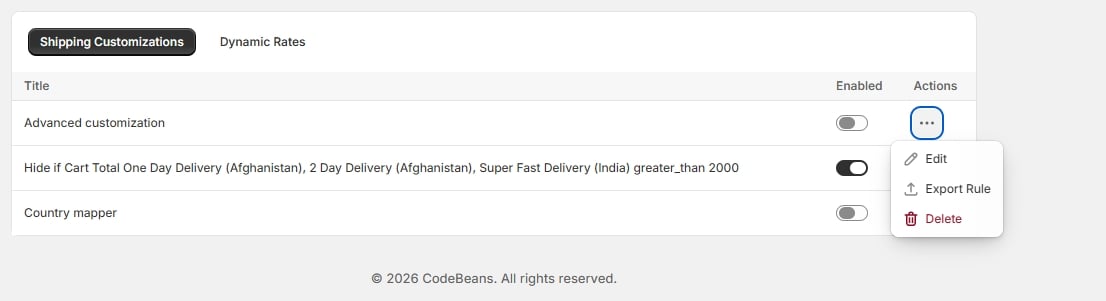
From the customizations list, open a rule’s row menu and choose Export Rule to download it as .json.
Row menu — Edit / Export Rule / Delete
Dynamic rates export the same way, from their own row menu on the Dynamic Rates tab.
{"docsConfig":{"theme":"mint","$schema":"https://mintlify.com/docs.json","name":"Codebeans Shipping Rules Pro","colors":{"primary":"#1F8C8C","light":"#3FC1C1","dark":"#1F8C8C"},"logo":{"light":"https://mintcdn.com/codebeans-shipping-rules-pro/q4ulWG3dWji5cRla/logo/light.svg?fit=max\u0026auto=format\u0026n=q4ulWG3dWji5cRla\u0026q=85\u0026s=5f6b775b92ec2d37f47bcfd09b5e692d","dark":"https://mintcdn.com/codebeans-shipping-rules-pro/q4ulWG3dWji5cRla/logo/dark.svg?fit=max\u0026auto=format\u0026n=q4ulWG3dWji5cRla\u0026q=85\u0026s=c0511cdaa36aa0ab0e58148c7db5d702","href":"https://apps.shopify.com/cb-advance-shopping-rules"},"favicon":"https://mintcdn.com/codebeans-shipping-rules-pro/q4ulWG3dWji5cRla/logo/icon.png?fit=max\u0026auto=format\u0026n=q4ulWG3dWji5cRla\u0026q=85\u0026s=a528b6dfe48e995fa10507b207bbf53b","navbar":{"links":[{"icon":"mail","href":"mailto:support@shopylyst.com","label":"Support"},{"icon":"globe","href":"https://codebeans.net","label":"Codebeans"}],"primary":{"type":"button","label":"Install app","href":"https://apps.shopify.com/cb-advance-shopping-rules"}},"footer":{"socials":{"website":"https://codebeans.net"}},"search":{"prompt":"Search the docs..."},"icons":{"library":"lucide"},"contextual":{"options":["copy","view","chatgpt","claude"],"display":"header"},"styling":{"latex":false},"navigation":{"pages":[]}},"deployment":{"deploymentMetadataValue":{"subdomain":"codebeans-shipping-rules-pro","hasAudioNarration":false,"actualSubdomain":"codebeans-shipping-rules-pro","customDomains":[],"gitSource":{"type":"github","owner":"codebeans-shopify","repo":"codebeans-advance-shipping-rules","deployBranch":"mintify-main","contentDirectory":"","isPrivate":true,"mountPath":"","label":""},"entitlements":{"AI_CHAT":{"status":"DISABLED"},"WEB_MCP":{"status":"DISABLED"},"NARRATION":{"status":"DISABLED"}},"buildId":"6acf8188ce756699a3d8e0c1","clientVersion":"0.0.4167","searchFilterCounts":[{"language":"default","tag":"Shipping customizations","count":4},{"language":"default","tag":"Getting started","count":4},{"language":"default","tag":"Managing rules","count":4},{"language":"default","tag":"Shipping organizers","count":4},{"language":"default","tag":"Dynamic rates","count":2},{"language":"default","tag":"Plans","count":2},{"language":"default","tag":"Support","count":1}]},"assistantConfig":{"enableAskAiButton":false,"enableStarterQuestions":false,"enableContextualStarterQuestions":false,"enableAskAiSearchBar":true},"basePath":"","hasChatPermissions":false,"hasWebMcpPermissions":false,"toggles":[{"name":"kill-isr","enabled":true,"variant":{"name":"disabled","enabled":false,"feature_enabled":true},"impressionData":false},{"name":"custom-rbac-roles","enabled":true,"variant":{"name":"disabled","enabled":false,"feature_enabled":true},"impressionData":false},{"name":"agent-mintlify-slack","enabled":true,"variant":{"name":"disabled","enabled":false,"feature_enabled":true},"impressionData":false},{"name":"agent-integrations-settings","enabled":true,"variant":{"name":"disabled","enabled":false,"feature_enabled":true},"impressionData":false},{"name":"rbac-expansion","enabled":true,"variant":{"name":"disabled","enabled":false,"feature_enabled":true},"impressionData":false},{"name":"automations-pr-grouping","enabled":true,"variant":{"name":"disabled","enabled":false,"feature_enabled":true},"impressionData":false},{"name":"custom-prefix","enabled":true,"variant":{"name":"disabled","enabled":false,"feature_enabled":true},"impressionData":false},{"name":"analytics-v7","enabled":true,"variant":{"name":"disabled","enabled":false,"feature_enabled":true},"impressionData":false},{"name":"user-flows-analytics","enabled":true,"variant":{"name":"disabled","enabled":false,"feature_enabled":true},"impressionData":false},{"name":"no-publish-flow","enabled":true,"variant":{"name":"disabled","enabled":false,"feature_enabled":true},"impressionData":false},{"name":"workos-onboarding","enabled":true,"variant":{"name":"disabled","enabled":false,"feature_enabled":true},"impressionData":false},{"name":"snapshot-serving-live","enabled":true,"variant":{"name":"disabled","enabled":false,"feature_enabled":true},"impressionData":false},{"name":"stripTemperatureMiddleware","enabled":true,"variant":{"name":"disabled","enabled":false,"feature_enabled":true},"impressionData":false},{"name":"support-platform-pylon-zendesk","enabled":true,"variant":{"name":"disabled","enabled":false,"feature_enabled":true},"impressionData":false},{"name":"snapshot-serving","enabled":true,"variant":{"name":"disabled","enabled":false,"feature_enabled":true},"impressionData":false},{"name":"instant-rollback","enabled":true,"variant":{"name":"disabled","enabled":false,"feature_enabled":true},"impressionData":false},{"name":"granular-notifications-server","enabled":true,"variant":{"name":"disabled","enabled":false,"feature_enabled":true},"impressionData":false},{"name":"granular-notifications","enabled":true,"variant":{"name":"disabled","enabled":false,"feature_enabled":true},"impressionData":false},{"name":"automations-fable","enabled":true,"variant":{"name":"disabled","enabled":false,"feature_enabled":true},"impressionData":false},{"name":"fixed-ai-action-pricing","enabled":true,"variant":{"name":"disabled","enabled":false,"feature_enabled":true},"impressionData":false},{"name":"automation-resolve-merge-conflict","enabled":true,"variant":{"name":"disabled","enabled":false,"feature_enabled":true},"impressionData":false},{"name":"scoped-publishing","enabled":true,"variant":{"name":"disabled","enabled":false,"feature_enabled":true},"impressionData":false},{"name":"mintql","enabled":true,"variant":{"name":"disabled","enabled":false,"feature_enabled":true},"impressionData":false},{"name":"page-level-analytics","enabled":true,"variant":{"name":"disabled","enabled":false,"feature_enabled":true},"impressionData":false},{"name":"editor-version-history-v2","enabled":true,"variant":{"name":"disabled","enabled":false,"feature_enabled":true},"impressionData":false},{"name":"billing-page-v2","enabled":true,"variant":{"name":"disabled","enabled":false,"feature_enabled":true},"impressionData":false},{"name":"full-page-search","enabled":true,"variant":{"name":"disabled","enabled":false,"feature_enabled":true},"impressionData":false},{"name":"workspace-projects","enabled":true,"variant":{"name":"disabled","enabled":false,"feature_enabled":true},"impressionData":false},{"name":"assistant-v5","enabled":true,"variant":{"name":"disabled","enabled":false,"feature_enabled":true},"impressionData":false},{"name":"fork-pr-previews","enabled":true,"variant":{"name":"disabled","enabled":false,"feature_enabled":true},"impressionData":false},{"name":"revalidation-jwt","enabled":true,"variant":{"name":"disabled","enabled":false,"feature_enabled":true},"impressionData":false},{"name":"workos-sso-scim","enabled":true,"variant":{"name":"disabled","enabled":false,"feature_enabled":true},"impressionData":false},{"name":"hobby-abuse-scan","enabled":true,"variant":{"name":"disabled","enabled":false,"feature_enabled":true},"impressionData":false},{"name":"dashboard-inbox","enabled":true,"variant":{"name":"disabled","enabled":false,"feature_enabled":true},"impressionData":false},{"name":"workos-signup","enabled":true,"variant":{"name":"disabled","enabled":false,"feature_enabled":true},"impressionData":false},{"name":"turbopuffer-dual-write","enabled":true,"variant":{"name":"disabled","enabled":false,"feature_enabled":true},"impressionData":false},{"name":"workos-enabled","enabled":true,"variant":{"name":"disabled","enabled":false,"feature_enabled":true},"impressionData":false},{"name":"approve-review-flow","enabled":true,"variant":{"name":"disabled","enabled":false,"feature_enabled":true},"impressionData":false},{"name":"editor-metadata","enabled":true,"variant":{"name":"disabled","enabled":false,"feature_enabled":true},"impressionData":false},{"name":"sso-setup-deadline-banner","enabled":true,"variant":{"name":"disabled","enabled":false,"feature_enabled":true},"impressionData":false},{"name":"turbopuffer-serve","enabled":true,"variant":{"name":"disabled","enabled":false,"feature_enabled":true},"impressionData":false},{"name":"live-agents","enabled":true,"variant":{"name":"disabled","enabled":false,"feature_enabled":true},"impressionData":false},{"name":"starter-pricing","enabled":true,"variant":{"name":"treatment","enabled":true,"payload":{"type":"string","value":"treatment"},"feature_enabled":true},"impressionData":false},{"name":"llms-txt-v2","enabled":true,"variant":{"name":"disabled","enabled":false,"feature_enabled":true},"impressionData":false}],"googleFontsInlined":false},"customCss":[],"page":{"pagePath":"managing-rules/import-and-export","slug":"/managing-rules/import-and-export","pageMetadata":{"title":"Import and export","description":"Back up rules as JSON, or move them between stores.","icon":"arrow-left-right","href":"/managing-rules/import-and-export"},"description":{"compiledSource":"\"use strict\";\nconst {jsx: _jsx} = arguments[0];\nconst {useMDXComponents: _provideComponents} = arguments[0];\nfunction _createMdxContent(props) {\n const _components = {\n p: \"p\",\n ..._provideComponents(),\n ...props.components\n };\n return _jsx(_components.p, {\n children: \"Back up rules as JSON, or move them between stores.\"\n });\n}\nfunction MDXContent(props = {}) {\n const {wrapper: MDXLayout} = {\n ..._provideComponents(),\n ...props.components\n };\n return MDXLayout ? _jsx(MDXLayout, {\n ...props,\n children: _jsx(_createMdxContent, {\n ...props\n })\n }) : _createMdxContent(props);\n}\nreturn {\n default: MDXContent\n};\n","frontmatter":{},"scope":{}},"pageType":"default","mdx":{"mdxSource":{"compiledSource":"\"use strict\";const{Fragment:_Fragment,jsx:_jsx,jsxs:_jsxs}=arguments[0];const{useMDXComponents:_provideComponents}=arguments[0];function _createMdxContent(props){const _components={a:`a`,code:`code`,p:`p`,strong:`strong`,..._provideComponents(),...props.components},{Frame,Heading,Note,OptimizedImage,Warning}=_components;if(!Frame)_missingMdxReference(`Frame`,true);if(!Heading)_missingMdxReference(`Heading`,true);if(!Note)_missingMdxReference(`Note`,true);if(!OptimizedImage)_missingMdxReference(`OptimizedImage`,true);if(!Warning)_missingMdxReference(`Warning`,true);return _jsxs(_Fragment,{children:[_jsxs(_components.p,{children:[`Every rule can be exported as a `,_jsx(_components.code,{children:`.json`}),` file from its row menu, and every configuration exported this way can be imported back in — useful for backing up a rule or moving it between stores.`]}),`\n`,_jsx(Heading,{level:`2`,id:`importing-a-rule`,children:`Importing a rule`}),`\n`,_jsxs(_components.p,{children:[`Open the import modal and drop in a `,_jsx(_components.code,{children:`.json`}),` file exported by this app.`]}),`\n`,_jsx(Frame,{caption:`Import modal, empty drop zone`,children:_jsx(OptimizedImage,{src:`https://mintcdn.com/codebeans-shipping-rules-pro/q4ulWG3dWji5cRla/images/11-import-modal.jpg?fit=max\u0026auto=format\u0026n=q4ulWG3dWji5cRla\u0026q=85\u0026s=aad6ffd13d5428a3e237d3b73647d279`,alt:`Import modal, empty drop zone`,\"data-og-width\":`652`,width:`652`,\"data-og-height\":`308`,height:`308`,\"data-path\":`images/11-import-modal.jpg`,\"data-optimize\":`true`,\"data-opv\":`3`,srcset:`https://mintcdn.com/codebeans-shipping-rules-pro/q4ulWG3dWji5cRla/images/11-import-modal.jpg?w=280\u0026fit=max\u0026auto=format\u0026n=q4ulWG3dWji5cRla\u0026q=85\u0026s=6adb724df1a9c3e69a1da5324c979c8e 280w, https://mintcdn.com/codebeans-shipping-rules-pro/q4ulWG3dWji5cRla/images/11-import-modal.jpg?w=560\u0026fit=max\u0026auto=format\u0026n=q4ulWG3dWji5cRla\u0026q=85\u0026s=36ddf566159d592a0428ade0c3adad84 560w, https://mintcdn.com/codebeans-shipping-rules-pro/q4ulWG3dWji5cRla/images/11-import-modal.jpg?w=840\u0026fit=max\u0026auto=format\u0026n=q4ulWG3dWji5cRla\u0026q=85\u0026s=70b76a5dafb28c0d808a965289c44ea3 840w, https://mintcdn.com/codebeans-shipping-rules-pro/q4ulWG3dWji5cRla/images/11-import-modal.jpg?w=1100\u0026fit=max\u0026auto=format\u0026n=q4ulWG3dWji5cRla\u0026q=85\u0026s=0afabe502e66beba9cf01fa8a8dabfb8 1100w, https://mintcdn.com/codebeans-shipping-rules-pro/q4ulWG3dWji5cRla/images/11-import-modal.jpg?w=1650\u0026fit=max\u0026auto=format\u0026n=q4ulWG3dWji5cRla\u0026q=85\u0026s=39fbf0944f7ba8bbfe6b673465ca5002 1650w, https://mintcdn.com/codebeans-shipping-rules-pro/q4ulWG3dWji5cRla/images/11-import-modal.jpg?w=2500\u0026fit=max\u0026auto=format\u0026n=q4ulWG3dWji5cRla\u0026q=85\u0026s=17752da65886422475e8d924027a9fce 2500w`})}),`\n`,_jsx(Warning,{children:_jsxs(_components.p,{children:[_jsx(_components.strong,{children:`An import doesn’t save the rule for you.`}),` The app reads the file and opens the matching editor with everything filled in — you still have to review it and click `,_jsx(_components.strong,{children:`Save`}),`. If you navigate away first, the import is discarded and nothing is created.`]})}),`\n`,_jsx(_components.p,{children:`This is deliberate: it gives you a chance to check a rule from another store against your own shipping methods and zones before it goes live.`}),`\n`,_jsx(_components.p,{children:`If the file isn’t a valid export — for example, it’s been hand-edited and is missing required fields — the modal shows an error instead of opening an editor with a broken rule.`}),`\n`,_jsx(Frame,{caption:`Import modal, corrupted-config error`,children:_jsx(OptimizedImage,{src:`https://mintcdn.com/codebeans-shipping-rules-pro/q4ulWG3dWji5cRla/images/12-import-error.jpg?fit=max\u0026auto=format\u0026n=q4ulWG3dWji5cRla\u0026q=85\u0026s=67c7cca449e7feb7fb6f4bfa9400c255`,alt:`Import modal, corrupted-config error`,\"data-og-width\":`664`,width:`664`,\"data-og-height\":`387`,height:`387`,\"data-path\":`images/12-import-error.jpg`,\"data-optimize\":`true`,\"data-opv\":`3`,srcset:`https://mintcdn.com/codebeans-shipping-rules-pro/q4ulWG3dWji5cRla/images/12-import-error.jpg?w=280\u0026fit=max\u0026auto=format\u0026n=q4ulWG3dWji5cRla\u0026q=85\u0026s=0a126f9cf74339da1837312494ad4119 280w, https://mintcdn.com/codebeans-shipping-rules-pro/q4ulWG3dWji5cRla/images/12-import-error.jpg?w=560\u0026fit=max\u0026auto=format\u0026n=q4ulWG3dWji5cRla\u0026q=85\u0026s=5e4609651f342ed72d826dc7cc006ba7 560w, https://mintcdn.com/codebeans-shipping-rules-pro/q4ulWG3dWji5cRla/images/12-import-error.jpg?w=840\u0026fit=max\u0026auto=format\u0026n=q4ulWG3dWji5cRla\u0026q=85\u0026s=5b8d57145c412ed53e17e8733a0c7c6b 840w, https://mintcdn.com/codebeans-shipping-rules-pro/q4ulWG3dWji5cRla/images/12-import-error.jpg?w=1100\u0026fit=max\u0026auto=format\u0026n=q4ulWG3dWji5cRla\u0026q=85\u0026s=1a694a487ee145539b99709603acf4e1 1100w, https://mintcdn.com/codebeans-shipping-rules-pro/q4ulWG3dWji5cRla/images/12-import-error.jpg?w=1650\u0026fit=max\u0026auto=format\u0026n=q4ulWG3dWji5cRla\u0026q=85\u0026s=e8266a8a7a875c67c173a28b4c0a5202 1650w, https://mintcdn.com/codebeans-shipping-rules-pro/q4ulWG3dWji5cRla/images/12-import-error.jpg?w=2500\u0026fit=max\u0026auto=format\u0026n=q4ulWG3dWji5cRla\u0026q=85\u0026s=8119bb3ddbae7e716be14f723da56dd5 2500w`})}),`\n`,_jsx(_components.p,{children:`If you hit this error, re-export a fresh copy of the rule from the store it was created in rather than editing the JSON by hand.`}),`\n`,_jsx(Note,{children:_jsxs(_components.p,{children:[`Importing is subject to the same plan limits as creating a rule by hand. Importing an advanced rule while on the Basic plan, for example, won’t work — see `,_jsx(_components.a,{href:`/plans/choosing-a-plan`,children:`Choosing a plan`}),`.`]})}),`\n`,_jsx(Heading,{level:`2`,id:`exporting-a-rule`,children:`Exporting a rule`}),`\n`,_jsxs(_components.p,{children:[`From the customizations list, open a rule’s row menu and choose `,_jsx(_components.strong,{children:`Export Rule`}),` to download it as `,_jsx(_components.code,{children:`.json`}),`.`]}),`\n`,_jsx(Frame,{caption:`Row menu — Edit / Export Rule / Delete`,children:_jsx(OptimizedImage,{src:`https://mintcdn.com/codebeans-shipping-rules-pro/q4ulWG3dWji5cRla/images/06-row-actions.jpg?fit=max\u0026auto=format\u0026n=q4ulWG3dWji5cRla\u0026q=85\u0026s=1233e935946b49b6fa04ae38ce1bc376`,alt:`Row menu — Edit / Export Rule / Delete`,\"data-og-width\":`1106`,width:`1106`,\"data-og-height\":`301`,height:`301`,\"data-path\":`images/06-row-actions.jpg`,\"data-optimize\":`true`,\"data-opv\":`3`,srcset:`https://mintcdn.com/codebeans-shipping-rules-pro/q4ulWG3dWji5cRla/images/06-row-actions.jpg?w=280\u0026fit=max\u0026auto=format\u0026n=q4ulWG3dWji5cRla\u0026q=85\u0026s=3eb88ca7cd4d5e43c657ba4571e52ed2 280w, https://mintcdn.com/codebeans-shipping-rules-pro/q4ulWG3dWji5cRla/images/06-row-actions.jpg?w=560\u0026fit=max\u0026auto=format\u0026n=q4ulWG3dWji5cRla\u0026q=85\u0026s=ca08b948ebb74ea0b74e93e84b2bf7b4 560w, https://mintcdn.com/codebeans-shipping-rules-pro/q4ulWG3dWji5cRla/images/06-row-actions.jpg?w=840\u0026fit=max\u0026auto=format\u0026n=q4ulWG3dWji5cRla\u0026q=85\u0026s=47f0172b77a8dd6ba35e7ff60214e796 840w, https://mintcdn.com/codebeans-shipping-rules-pro/q4ulWG3dWji5cRla/images/06-row-actions.jpg?w=1100\u0026fit=max\u0026auto=format\u0026n=q4ulWG3dWji5cRla\u0026q=85\u0026s=07fcb50d16fb1393604ad132e6b2ee7a 1100w, https://mintcdn.com/codebeans-shipping-rules-pro/q4ulWG3dWji5cRla/images/06-row-actions.jpg?w=1650\u0026fit=max\u0026auto=format\u0026n=q4ulWG3dWji5cRla\u0026q=85\u0026s=90e9cb72071584f7190048f63749be01 1650w, https://mintcdn.com/codebeans-shipping-rules-pro/q4ulWG3dWji5cRla/images/06-row-actions.jpg?w=2500\u0026fit=max\u0026auto=format\u0026n=q4ulWG3dWji5cRla\u0026q=85\u0026s=7644f82d549adc58a20511bf131f2ebc 2500w`})}),`\n`,_jsx(_components.p,{children:`Dynamic rates export the same way, from their own row menu on the Dynamic Rates tab.`})]})}function MDXContent(props={}){const{wrapper:MDXLayout}={..._provideComponents(),...props.components};return MDXLayout?_jsx(MDXLayout,{...props,children:_jsx(_createMdxContent,{...props})}):_createMdxContent(props)}return{default:MDXContent};function _missingMdxReference(id,component){throw new Error(`Expected `+(component?`component`:`object`)+\" `\"+id+\"` to be defined: you likely forgot to import, pass, or provide it.\")}","frontmatter":{},"scope":{"config":{},"pageMetadata":{"title":"Import and export","description":"Back up rules as JSON, or move them between stores.","icon":"arrow-left-right","href":"/managing-rules/import-and-export"}}},"mdxSourceWithNoJs":null},"mdxExtracts":{"tableOfContents":[{"title":"Importing a rule","slug":"importing-a-rule","depth":2,"children":[]},{"title":"Exporting a rule","slug":"exporting-a-rule","depth":2,"children":[]}],"codeExamples":{}},"jsLinks":[],"subdomain":"codebeans-shipping-rules-pro","siteName":"Codebeans Shipping Rules Pro","title":"Import and export - Codebeans Shipping Rules Pro","navMaps":{"firstHrefInVersion":{},"firstHrefInLanguage":{}},"lastModified":"2026-10-14T13:21:01.100Z","originalFileLocation":"managing-rules/import-and-export.mdx"},"headHtml":"\u003cscript data-mint-head>(function(){var d=document.documentElement,p=null;if(!p){try{p=localStorage.getItem(\"isDarkMode\")}catch(e){}if(p==='true')p='dark';else if(p==='false')p='light';if(p!=='light'\u0026\u0026p!=='dark'\u0026\u0026p!=='system')p=\"system\"}var r=p==='system'?(matchMedia(\"(prefers-color-scheme: dark)\").matches?'dark':'light'):p;d.classList.remove(r==='dark'?'light':'dark');d.classList.add(r);d.setAttribute(\"data-theme-preference\",p)})();\u003c/script>\u003cmeta data-mint-head name=\"description\" content=\"Back up rules as JSON, or move them between stores.\">\u003cmeta data-mint-head name=\"application-name\" content=\"Codebeans Shipping Rules Pro\">\u003cmeta data-mint-head name=\"generator\" content=\"Mintlify\">\u003clink data-mint-head rel=\"icon\" type=\"image/png\" sizes=\"192x192\" href=\"/mintlify-assets/_mintlify/favicons/codebeans-shipping-rules-pro/vFB-r_JWftQs7lPt/_generated/favicon/android-chrome-192x192.png\" media=\"(prefers-color-scheme: light)\">\u003clink data-mint-head rel=\"apple-touch-icon\" type=\"image/png\" sizes=\"180x180\" href=\"/mintlify-assets/_mintlify/favicons/codebeans-shipping-rules-pro/vFB-r_JWftQs7lPt/_generated/favicon/apple-touch-icon.png\">\u003clink data-mint-head rel=\"icon\" type=\"image/png\" sizes=\"16x16\" href=\"/mintlify-assets/_mintlify/favicons/codebeans-shipping-rules-pro/vFB-r_JWftQs7lPt/_generated/favicon/favicon-16x16.png\" media=\"(prefers-color-scheme: light)\">\u003clink data-mint-head rel=\"icon\" type=\"image/png\" sizes=\"32x32\" href=\"/mintlify-assets/_mintlify/favicons/codebeans-shipping-rules-pro/vFB-r_JWftQs7lPt/_generated/favicon/favicon-32x32.png\" media=\"(prefers-color-scheme: light)\">\u003clink data-mint-head rel=\"shortcut icon\" type=\"image/x-icon\" href=\"/mintlify-assets/_mintlify/favicons/codebeans-shipping-rules-pro/vFB-r_JWftQs7lPt/_generated/favicon/favicon.ico\" media=\"(prefers-color-scheme: light)\">\u003clink data-mint-head rel=\"icon\" type=\"image/png\" sizes=\"192x192\" href=\"/mintlify-assets/_mintlify/favicons/codebeans-shipping-rules-pro/vFB-r_JWftQs7lPt/_generated/favicon-dark/android-chrome-192x192.png\" media=\"(prefers-color-scheme: dark)\">\u003clink data-mint-head rel=\"icon\" type=\"image/png\" sizes=\"16x16\" href=\"/mintlify-assets/_mintlify/favicons/codebeans-shipping-rules-pro/vFB-r_JWftQs7lPt/_generated/favicon-dark/favicon-16x16.png\" media=\"(prefers-color-scheme: dark)\">\u003clink data-mint-head rel=\"icon\" type=\"image/png\" sizes=\"32x32\" href=\"/mintlify-assets/_mintlify/favicons/codebeans-shipping-rules-pro/vFB-r_JWftQs7lPt/_generated/favicon-dark/favicon-32x32.png\" media=\"(prefers-color-scheme: dark)\">\u003clink data-mint-head rel=\"shortcut icon\" type=\"image/x-icon\" href=\"/mintlify-assets/_mintlify/favicons/codebeans-shipping-rules-pro/vFB-r_JWftQs7lPt/_generated/favicon-dark/favicon.ico\" media=\"(prefers-color-scheme: dark)\">\u003cmeta data-mint-head property=\"og:title\" content=\"Import and export - Codebeans Shipping Rules Pro\">\u003cmeta data-mint-head property=\"og:description\" content=\"Back up rules as JSON, or move them between stores.\">\u003cmeta data-mint-head property=\"og:site_name\" content=\"Codebeans Shipping Rules Pro\">\u003cmeta data-mint-head property=\"og:url\" content=\"https://codebeans-shipping-rules-pro.mintlify.app/managing-rules/import-and-export\">\u003cmeta data-mint-head property=\"og:type\" content=\"website\">\u003cmeta data-mint-head property=\"og:image\" content=\"https://codebeans-shipping-rules-pro.mintlify.site/_mintlify/api/og/v2?division=Managing+rules\u0026amp;title=Import+and+export\u0026amp;description=Back+up+rules+as+JSON%2C+or+move+them+between+stores.\u0026amp;theme=96b97ca018dcbc4e01552283\u0026amp;signature=fa6b7fe590c6aeaf739e7ee71a8d6e610e2397243afcf28c10e73ad0a5f1632d\">\u003cmeta data-mint-head property=\"og:image:width\" content=\"1200\">\u003cmeta data-mint-head property=\"og:image:height\" content=\"630\">\u003cmeta data-mint-head name=\"twitter:card\" content=\"summary_large_image\">\u003cmeta data-mint-head name=\"twitter:title\" content=\"Import and export - Codebeans Shipping Rules Pro\">\u003cmeta data-mint-head name=\"twitter:description\" content=\"Back up rules as JSON, or move them between stores.\">\u003cmeta data-mint-head name=\"twitter:image\" content=\"https://codebeans-shipping-rules-pro.mintlify.site/_mintlify/api/og/v2?division=Managing+rules\u0026amp;title=Import+and+export\u0026amp;description=Back+up+rules+as+JSON%2C+or+move+them+between+stores.\u0026amp;theme=96b97ca018dcbc4e01552283\u0026amp;signature=fa6b7fe590c6aeaf739e7ee71a8d6e610e2397243afcf28c10e73ad0a5f1632d\">\u003cmeta data-mint-head name=\"twitter:image:width\" content=\"1200\">\u003cmeta data-mint-head name=\"twitter:image:height\" content=\"630\">\u003cmeta data-mint-head name=\"msapplication-config\" content=\"/mintlify-assets/_mintlify/favicons/codebeans-shipping-rules-pro/vFB-r_JWftQs7lPt/_generated/favicon/browserconfig.xml\">\u003cmeta data-mint-head name=\"apple-mobile-web-app-title\" content=\"Codebeans Shipping Rules Pro\">\u003cmeta data-mint-head name=\"msapplication-TileColor\" content=\"#1F8C8C\">\u003clink data-mint-head rel=\"canonical\" href=\"https://codebeans-shipping-rules-pro.mintlify.app/managing-rules/import-and-export\">\u003clink data-mint-head rel=\"alternate\" type=\"application/xml\" href=\"/sitemap.xml\">\u003clink data-mint-head rel=\"alternate\" type=\"text/markdown\" href=\"/managing-rules/import-and-export.md\">\u003cscript data-mint-head type=\"application/ld+json\">{\"@context\":\"https://schema.org\",\"@graph\":[{\"@type\":\"Organization\",\"@id\":\"https://codebeans-shipping-rules-pro.mintlify.app/#organization\",\"name\":\"Codebeans Shipping Rules Pro\",\"url\":\"https://codebeans-shipping-rules-pro.mintlify.app\",\"logo\":{\"@type\":\"ImageObject\",\"url\":\"https://mintcdn.com/codebeans-shipping-rules-pro/q4ulWG3dWji5cRla/logo/light.svg?fit=max\u0026auto=format\u0026n=q4ulWG3dWji5cRla\u0026q=85\u0026s=5f6b775b92ec2d37f47bcfd09b5e692d\"}},{\"@type\":\"WebSite\",\"@id\":\"https://codebeans-shipping-rules-pro.mintlify.app#website\",\"name\":\"Codebeans Shipping Rules Pro\",\"url\":\"https://codebeans-shipping-rules-pro.mintlify.app\",\"publisher\":{\"@id\":\"https://codebeans-shipping-rules-pro.mintlify.app/#organization\"}},{\"@type\":\"WebPage\",\"@id\":\"https://codebeans-shipping-rules-pro.mintlify.app/managing-rules/import-and-export#webpage\",\"url\":\"https://codebeans-shipping-rules-pro.mintlify.app/managing-rules/import-and-export\",\"name\":\"Import and export\",\"description\":\"Back up rules as JSON, or move them between stores.\",\"dateModified\":\"2026-10-14T13:21:01.100Z\",\"isPartOf\":{\"@id\":\"https://codebeans-shipping-rules-pro.mintlify.app#website\"},\"breadcrumb\":{\"@id\":\"https://codebeans-shipping-rules-pro.mintlify.app/managing-rules/import-and-export#breadcrumb\"}},{\"@type\":\"BreadcrumbList\",\"@id\":\"https://codebeans-shipping-rules-pro.mintlify.app/managing-rules/import-and-export#breadcrumb\",\"itemListElement\":[{\"@type\":\"ListItem\",\"position\":1,\"name\":\"Managing rules\",\"item\":\"https://codebeans-shipping-rules-pro.mintlify.app/managing-rules/turning-on-and-off\"},{\"@type\":\"ListItem\",\"position\":2,\"name\":\"Import and export\",\"item\":\"https://codebeans-shipping-rules-pro.mintlify.app/managing-rules/import-and-export\"}]},{\"@type\":[\"Article\",\"TechArticle\"],\"@id\":\"https://codebeans-shipping-rules-pro.mintlify.app/managing-rules/import-and-export#article\",\"headline\":\"Import and export\",\"name\":\"Import and export\",\"description\":\"Back up rules as JSON, or move them between stores.\",\"url\":\"https://codebeans-shipping-rules-pro.mintlify.app/managing-rules/import-and-export\",\"mainEntityOfPage\":{\"@id\":\"https://codebeans-shipping-rules-pro.mintlify.app/managing-rules/import-and-export#webpage\"},\"dateModified\":\"2026-10-14T13:21:01.100Z\",\"publisher\":{\"@id\":\"https://codebeans-shipping-rules-pro.mintlify.app/#organization\"},\"isPartOf\":{\"@id\":\"https://codebeans-shipping-rules-pro.mintlify.app#website\"}}]}\u003c/script>\u003cscript data-mint-head type=\"application/ld+json\">{\"@context\":\"https://schema.org\",\"@type\":\"WebSite\",\"name\":\"Codebeans Shipping Rules Pro\",\"publisher\":{\"@type\":\"Organization\",\"name\":\"Codebeans Shipping Rules Pro\"},\"provider\":{\"@type\":\"Organization\",\"name\":\"Mintlify\",\"url\":\"https://mintlify.com\"}}\u003c/script>","agentPointerHref":"/managing-rules/import-and-export.md","siteName":"Codebeans Shipping Rules Pro","nav":{"global":null,"groups":[{"group":"Getting started","icon":"rocket","pages":[{"title":"Introduction","icon":"book-open","href":"/index"},{"title":"Installing and getting set up","icon":"download","href":"/getting-started/installing"},{"title":"Finding your way around","icon":"compass","href":"/getting-started/navigation"},{"title":"Understanding the Home page","icon":"house","href":"/getting-started/home-page"}]},{"group":"Plans","icon":"credit-card","pages":[{"title":"Choosing a plan","icon":"credit-card","href":"/plans/choosing-a-plan"},{"title":"Plans and feature access","icon":"lock","href":"/plans/feature-access"}]},{"group":"Shipping customizations","icon":"truck","pages":[{"title":"Choosing a rule type","icon":"list-checks","href":"/customizations/choosing-a-rule-type"},{"title":"The customizations list","icon":"table","href":"/customizations/customizations-list"},{"title":"Simple customization","icon":"zap","href":"/customizations/simple"},{"title":"Advanced customization","icon":"git-branch","href":"/customizations/advanced"}]},{"group":"Shipping organizers","icon":"layers","pages":[{"title":"Country Shipping Organizer","icon":"globe","href":"/organizers/country"},{"title":"Shopify Market Shipping Organizer","icon":"store","href":"/organizers/shopify-market"},{"title":"Customer Tag Shipping Organizer","icon":"tag","href":"/organizers/customer-tag"},{"title":"Customer Company Shipping Organizer","icon":"building-2","href":"/organizers/customer-company"}]},{"group":"Dynamic rates","icon":"calculator","pages":[{"title":"Setting up dynamic rates","icon":"calculator","href":"/dynamic-rates/setting-up"},{"title":"Dynamic rate conditions","icon":"filter","href":"/dynamic-rates/conditions"}]},{"group":"Managing rules","icon":"settings","pages":[{"title":"Turning rules on and off","icon":"toggle-right","href":"/managing-rules/turning-on-and-off"},{"title":"Deleting a rule","description":"Permanently remove a rule and its Shopify delivery customization.","icon":"trash-2","href":"/managing-rules/deleting"},{"title":"Import and export","icon":"arrow-left-right","href":"/managing-rules/import-and-export"},{"title":"Seeing your rule at checkout","description":"Confirm a rule works by running it through checkout yourself.","icon":"shopping-cart","href":"/managing-rules/testing-at-checkout"}]},{"group":"Support","icon":"life-buoy","pages":[{"title":"Getting help","icon":"life-buoy","href":"/support/getting-help"}]}]},"basePath":"","title":"Import and export - Codebeans Shipping Rules Pro","buildId":"dpl_9RFrWkXdFTJCytfx6jAofvAaEXr6","deploymentId":"dpl_9RFrWkXdFTJCytfx6jAofvAaEXr6","dynamics":["07c022d89b","a74be98ba7"],"chunks":["Frame-1H5zLJUq.js","DynamicMarkdown-RhjEuCHC.js","zoom-image-lightbox-CkI5al_8.js","lightbox-handle-r17bVUz3.js"]}